When you move to WordPress from Blogger or a hosted platform, one small thing trips people up: the post URL. Some sites show a clean address like example.com/post-title. Others show example.com/?p=123. That gap comes down to one setting. Our own site runs on the clean version, /post-name/, and that’s where I’ll start. If you remember just one thing, make it this: pick your URL structure once, then leave it alone.
What a permalink is
A permalink is the permanent address for a single post. The name says it: it’s not supposed to change. It’s what readers bookmark, what other sites link to, and what Google indexes. So a readable address helps people and search engines alike. /wordpress-speed-optimization/ tells you what the post is about. /?p=46 tells you nothing.
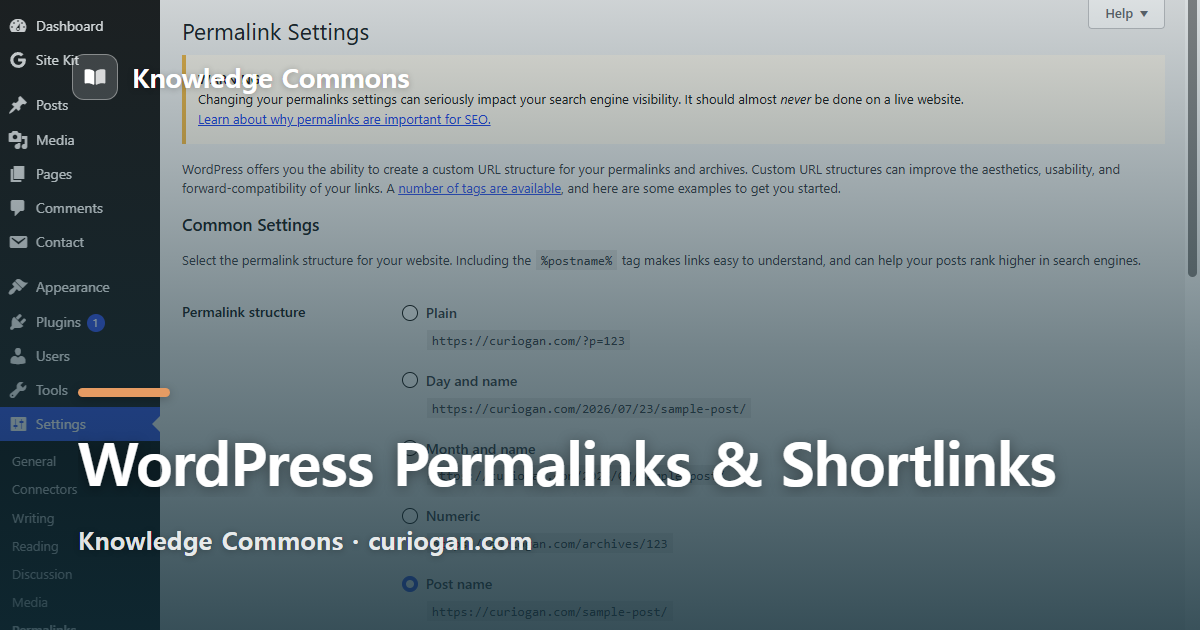
WordPress lets you choose the shape of that address. In the admin, go to Settings → Permalinks and you get six options.
| Structure | Example URL | Note |
|---|---|---|
| Plain | example.com/?p=123 | The default right after install. Ugly and unmemorable |
| Day and name | example.com/2026/07/23/post-name/ | Long. Fine for dated, news-style posts |
| Month and name | example.com/2026/07/post-name/ | A bit shorter than the day version |
| Numeric | example.com/archives/123 | The post number. Means nothing to a human |
| Post name | example.com/post-name/ | Shortest and clearest. Most sites use this |
| Custom structure | /%category%/%postname%/ etc. | Mix your own tags. Useful to put a category in the URL |
Things like %postname%, %year%, and %category% that go in the custom box are structure tags. The five presets above are really just common combinations of them, and you can mix your own if you want.
Which one to pick
Don’t overthink it. Pick Post name. The address is shortest, it says what the post is, and it won’t shift if you move the post to another category later. The /%category%/%postname%/ style looks tidy, but the day you recategorize a post, its whole URL changes. We keep a single category and use post name only.
You’ll see old advice that numeric or date URLs are “easier on the server.” Before WordPress 3.3 there was a small grain of truth to it. On current versions it makes no real difference. There’s no reason to accept an ugly URL over a speed worry that no longer exists.
How to set it
Go to Settings → Permalinks, choose Post name, and click Save Changes. When you save, WordPress tells you one of two things. If your .htaccess file is writable, you’ll see “Permalink structure updated” and it handles the rest. If it isn’t writable, you’ll see “You should update your .htaccess now” along with the rewrite rules you need. Copy those rules into the .htaccess file at your site root.
One handy fact: just opening the Permalinks screen makes WordPress rewrite its URL rules, even without saving. So if you switch to pretty URLs and every post starts throwing a 404, opening that screen once usually fixes it. The rules had gone stale, and the visit refreshed them.
Except that didn’t work for us
When we put this blog on its server, we hit exactly that 404. Every post URL was dead. Reopening the Permalinks screen did nothing, no matter how many times I tried. The cause wasn’t stale rules. Apache wasn’t reading the .htaccess file at all. The server had that folder’s override permission (AllowOverride) switched off, so anything in .htaccess was simply ignored. No screen refresh was going to touch that.
It only came back after we added one line to the server’s virtual host config to open that folder up (AllowOverride All). So here’s the rule of thumb. If pretty URLs 404, open the Permalinks screen once. If that doesn’t do it, the problem isn’t the rules, it’s that the server isn’t reading .htaccess at all, which points at your host config or mod_rewrite. On shared hosting it’s usually on, so the first fix ends it. If you run your own server, suspect the second.
Once you’ve chosen, leave it
This is the part that matters most. If you change the structure long after posts are live, every old URL turns into a 404. Your search rankings, the links other people set, the links shared on social, they all break together. That’s the whole reason it’s called a permalink.
If you truly must change it, you have to add 301 redirects from the old addresses to the new ones, either by hand in .htaccess or with a plugin like Redirection. It’s a lot of work. Picking post name at the start and leaving it is by far the cheapest path.
So what’s a shortlink
Even after you switch to pretty URLs, the example.com/?p=123 form never goes away. It stays alive in the background and forwards to the post. That’s the shortlink: the short address WordPress gives every post by default. It only needs the post number, so it stays short no matter how long the title is. And it doesn’t change when you edit the title or the slug, because the post number stays the same.
When is it useful? When you’re pasting a link somewhere with a tight character limit, or when you want a stable address to write down before you’ve finalized a title. One catch: the old “Get Shortlink” button is gone from the block editor (Gutenberg). It was hidden from the default screen back in WordPress 4.4. If you want the button back, a plugin like “Bring Back the Get Shortlink Button” restores it, or you can just type ?p=postID into the address bar yourself.
For the record, an external shortener like bit.ly, or the wp.me address from WordPress.com and Jetpack, is a different animal. Those are made by an outside service. The shortlink here is the ?p=number your own site already owns.
Wrapping up
On a fresh WordPress install, the first stop is Settings → Permalinks. Choose Post name. That’s the address people and search engines both prefer. Set it, then leave it. If a URL 404s, open that screen once, and if it’s still dead, check whether the server is reading .htaccess at all. The shortlink (?p=number) waits in the background as a stable, short reference, ready whenever you need it.